

Keep Your Communication Steady With Group Text Messaging
Communication issues make employees less productive, slow down projects, and delay decisions. According to Project.co, 53% of surveyed people say they’ve wasted time due to a communication issue in their business.
Customers feel it too. According to Comm100, 71% of consumers aged 16–24 say quick replies from a service team improve their experience. When people are left waiting, satisfaction drops, and so does trust.
Group texting helps you avoid follow-up delays and reduces the time your team spends on repeating updates. You can quickly message when schedules change, last-minute gaps come up, or customers need reminders.
In this article, we will look at how group texting supports high-volume messaging and how to set it up. We’ll also introduce a group text message service that’s built to meet the everyday needs of business communication.
TL;DR
- Group texting helps you communicate faster by sending a text message to multiple contacts at once.
- Group messaging is used for daily operational needs like sales updates, recruiting, shift coordination, real estate updates, event reminders, support alerts, and dispatch messages.
- Getting started with group texting involves choosing the right texting platform, uploading contacts, grouping your audience, using text templates, personalizing messages, scheduling campaigns, and monitoring responses.
- Textellent brings all of these tools into one SMS marketing platform, which makes it easy to run organized, large-scale texting for teams and customers.
Use Cases for Group Text Messages
Group texting can help solve everyday communication problems in many parts of your business. Below are some common ways you can use group texting to stay organized:
Sales Notifications and Pipeline Updates
If a new lead is assigned, a contract gets signed, or a meeting is moved, one group message can reach everyone involved. This is helpful for sales managers who want to keep the team aware of progress during the day.
Recruiting Teams Communicating With Candidates
Group text makes it easier to confirm interview times, send reminders, or share simple updates.
Instead of creating a new conversation for each candidate, recruiters can message a list and collect fast replies. Most applicants are quicker to respond this way, which gives recruiters the feedback they need to keep the process moving.
Staff Scheduling and Shift Reminders
Shift gaps lead to service issues. With group text, managers can message the whole team and ask who’s available.
If someone confirms a shift, you get a confirmation without looking through emails or making calls. On some platforms, team leads can also add people to active threads as needs change during the day.
Real Estate Group Messaging for Agents and Clients
Agents on the move don’t have time to scroll through long threads in the messages app.
A group message can update agents on listings or display price changes within seconds. Buyers or sellers can be contacted through a group iMessage or SMS thread, depending on their device.
Event Management and RSVP Follow-Ups
SMS event marketing is faster than calling and easier than waiting for replies by email.
If you’re planning an event, you need to keep guests, staff, and vendors in the loop. Group text is useful for sending reminders, confirming headcounts, and updating people if anything changes close to the event.
Customer Support Escalations
Some problems need quick attention. Customer service texting lets you send alerts to the right people on your support team the moment something happens. You can loop in leads, tech staff, or managers so they can act early and follow up before the issue spreads.
Logistics and Dispatch Notifications
Drivers, tech crews, and field teams need updates during the day. Group text helps you share job info, changes in routes, or delivery notes as they happen. You don’t need everyone to check an app as they see the message on their phones and can reply right away if needed.
How to Get Started With Group Texting
Group texting keeps your business aligned when updates, replies, and quick communication are needed. Here’s how to set it up and start sending messages to multiple contacts:
Step #1: Choose a Texting Platform Built for Business
A tool that only handles personal messages won’t give you the features you need when you’re sending to groups of staff or large lists of customers. You want a platform that supports group SMS messages so you can handle communication as you expand.
Textellent is built for business texting and mass text campaigns. You can send a message to thousands of contacts while still keeping individual replies organized and linked to your business phone number.
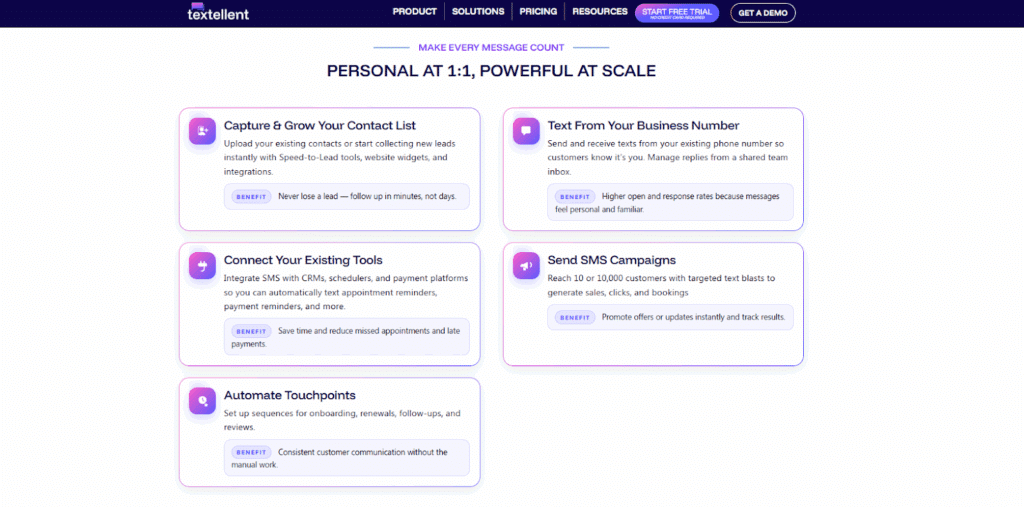
The platform allows you to send one SMS message that reaches multiple recipients fast and track delivery and replies from a shared dashboard. Your team has a single place to send updates, check responses, and act on replies without juggling separate apps or inboxes.
When you choose a business SMS solution like Textellent, you get the tools you need to handle mass messaging with more control and tracking than you would with standard texting apps.
Sign up for a free trial or request a demo consultation with Textellent today!
Step #2: Import or Sync Your Contact List
Import your contacts into the platform so you don’t have to type numbers one by one. You can upload a file or connect to other systems you use so your contacts merge into a single place. It becomes easier to manage group name labels and reach the entire group.
Step #3: Segment Your Audience
Once contacts are in place, you can organize them into meaningful groups. For example, staff, clients, and new leads each have their own purpose.
SMS segmentation allows you to send messages that match each group’s role or need. It helps your team respond faster by avoiding sorting through messages intended for other recipients.
Step #4: Write or Select a Message Template
Think about the messages you send often, such as reminders, updates, and notices. Instead of writing from scratch each time, you can save those messages and reuse them when needed.
Textellent supports creating SMS templates to reuse for common messages and setting rules to trigger follow-up messages based on actions or time. These features support group SMS campaigns or ongoing updates while working within your team’s schedule.
Step #5: Personalize With Tags or Merge Fields
People respond better when messages feel personal. Textellent lets you insert fields like [First Name], [Appointment Date], or any other contact detail.
These fields automatically fill in for each contact on your list. It’s a quick way to make messages feel more personal without sending them one by one.
Step #6: Schedule or Send Immediately
You don’t have to send messages right away. Textellent supports SMS scheduling so that texts go out at the time you choose. This is helpful when planning, like reminders the day before a visit, early-morning shift updates, or messages that need to reach people at specific times.
Step #7: Monitor Replies or Automate Responses
Once your messages are sent, Textellent shows you all SMS replies in a shared inbox. Your team can view, reply to, or assign messages to the appropriate person.
You can also use SMS automation tools to reply based on keywords or actions. For example, if a contact replies “Yes,” you can trigger a thank-you message or send the next instruction.
Automate the Busywork, Keep the Message Personal With Textellent!
When communication needs to move fast, Textellent makes it simple to send timely updates, reminders, and announcements.
Textellent is built for real group conversations. You can create simple groups, write message templates for everyday use, and still add personal details that make your texts feel one-to-one. Your team can also see replies in a shared inbox and keep communication flowing.
Textellent also lets you schedule messages ahead of time or set them to go out automatically. It’s easy to manage, simple to track, and made to support the way your team already works.

Sign up for a free trial or request a demo consultation with Textellent to see how it can help your team stay responsive and connected!
FAQs About Group Text
Can you add links or attachments in a group text?
Yes, you can include links in a group text just like in a one-on-one message. When you add a full URL, most phones turn it into a clickable link. If your text marketing platform supports group MMS, you may also be able to attach basic files or graphics, such as photos or documents.
Keep in mind that message size limits may apply, depending on the file type and how it’s sent. Some systems may also limit certain attachments based on device or network support for MMS reply.
How many contacts can you message at once?
The number of group members you can message depends on the texting platform you use. For example, Google Messages or built-in texting apps may limit how many contacts can be included in a group chat when sending from a mobile device.
SMS platforms are made to support larger lists. You can send messages to many people while keeping replies separated and easy to track. This helps avoid confusion and protects personal info between contacts.
What happens if some recipients use iPhones and others use Androids?
If you send a group message from a mobile phone, delivery may not be consistent. iPhones use iMessage by default, while Android uses SMS or RCS chats. When these mix, threads can break, or some contacts might not receive messages at all.
In some cases, replies may not appear in the same thread or may fail. You’ll also lose visibility into typing indicators, read receipts, or face delays. Some users even need to tap delete and restart the thread on their Android phone to fix issues.
How do group text settings work for participants and message control?
Group texting platforms give you control over who sees and replies to messages on one shared screen.
You can manage participants, rename a thread with a new name, or remove contacts if needed. Some tools also let you limit replies, mark contacts as blocked, and manage message data securely.

Get Started with Business Texting
Simple to launch, built to scale. Try Textellent FREE for 14 Days
Start Free Trial