
How to Make a Google Business Page in 10 Easy Steps
Customers are searching for local services every day, and most decisions start on Google.
If your business is not showing up, or your listing looks incomplete, those opportunities go to competitors who are easier to find and contact.
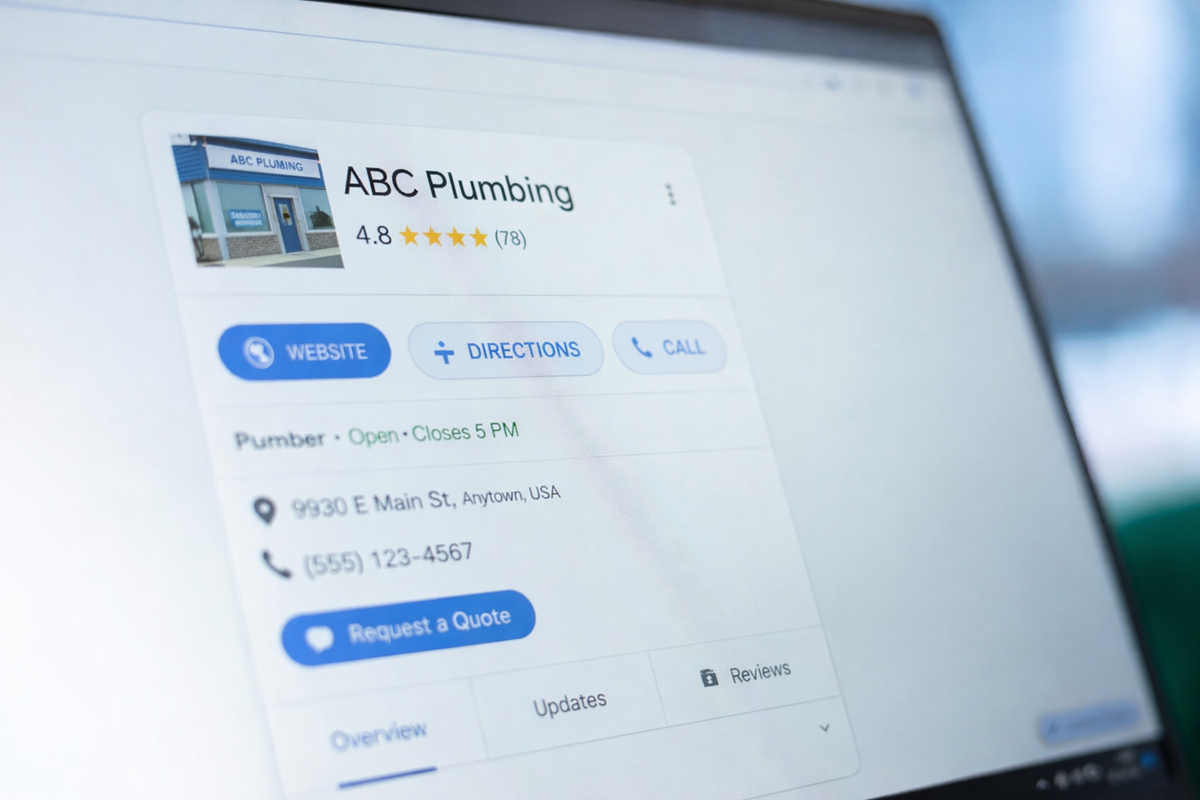
A well-optimized business profile on Google influences how your company appears in local search results. It also gives you a place to showcase your work and build trust through reviews.
However, creating a business listing is only part of the process. What you include, how you optimize it, and how you manage incoming inquiries all influence your results.
In this guide, you will learn how to make a Google Business page and discover how the best SMS marketing platform helps turn customer interest into booked jobs.
TL;DR
- A Google Business page improves your visibility in local search and helps customers find your services.
- Setting up your profile involves registering your business, creating your listing, selecting the right category, adding details, verifying your business, completing your profile, requesting customer reviews, and keeping your profile active.
- Textellent turns your Google Business page into a consistent lead-to-booking system with faster SMS replies and smart automation.
How an Optimized Google Business Page Impacts Local SEO
According to the 2025 Consumer Behavior Index report, 80% of consumers look for local businesses through Google Search every week.
Many of these users rely on quick results to find your business. This means your visibility on Google determines whether your business gets the call or gets overlooked.
Your business profile acts as an essential part of your search engine optimization (SEO) strategy. Google uses your profile to decide when your business should appear in local results on Search and Maps.
Adding details such as your primary category, accurate business location, strong business description, and updated information helps Google better understand your services.
But visibility alone does not drive results. Strong Google reviews, accurate business hours, and high-quality images shape how potential customers view your business and influence their decision to reach out.
An optimized profile does more than improve rankings. It connects visibility with action.
When your listing is complete, active, and aligned with what customers are searching for, you create a stronger path from discovery to inquiry.
10 Steps to Set Up Your Google Business Profile
Each step matters if you want your business to show up properly in local search and start generating leads. Here’s a quick setup for creating a Google Business page for your local business.
Step #1: Register Your Business on Google
Go to the Google Business Profile page and click “Start now” to begin setup.
This is where you will create and manage your listing using the Business Profile Manager linked to your Google account.
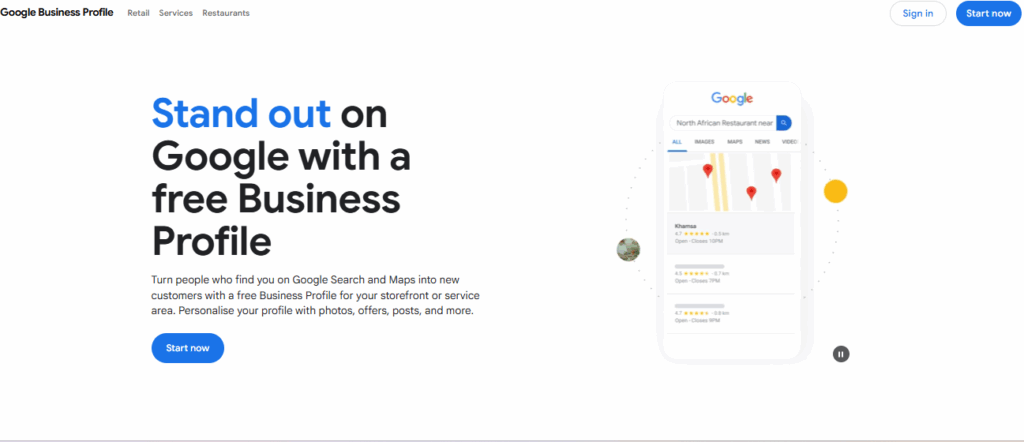
Image source: google.com/business
Step #2: Find or Add Your Business
Next, enter your business name in the search field. If your business already appears in the search bar, you can claim the listing.
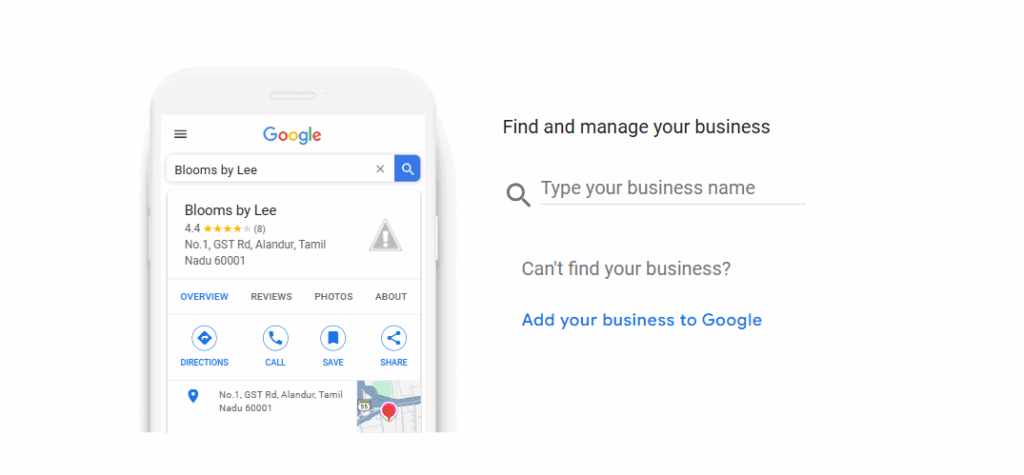
Image source: google.com/business
If an existing profile appears, check if there is a current profile owner before proceeding.
If someone else is listed as the owner, you will need to request ownership and wait for approval. Create a new listing if your business does not appear in the search field.
Step #3: Enter Your Business Name and Type
You need to add your official business name and choose your business type.
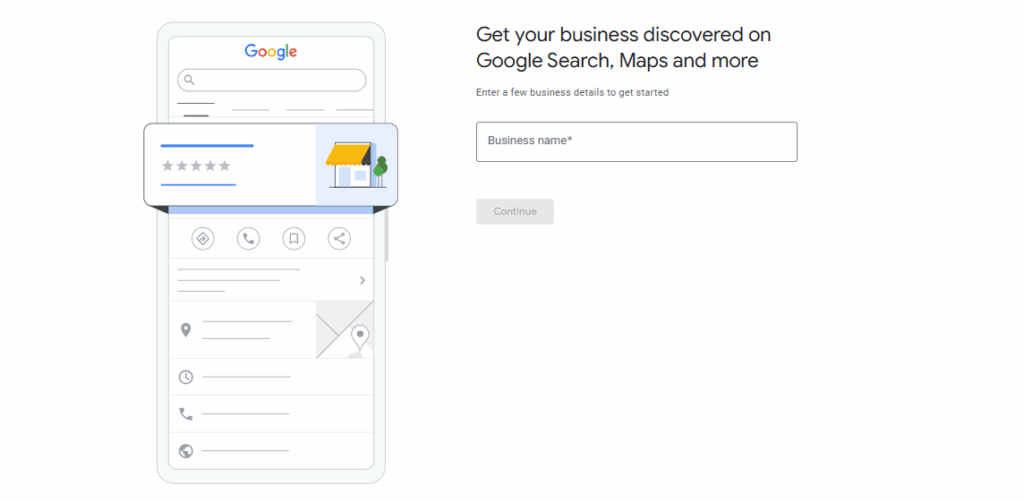
Image source: google.com/business
This step helps Google understand how your business operates and who it serves.
Step #4: Choose Your Primary Category
Select the primary category that best describes your service.
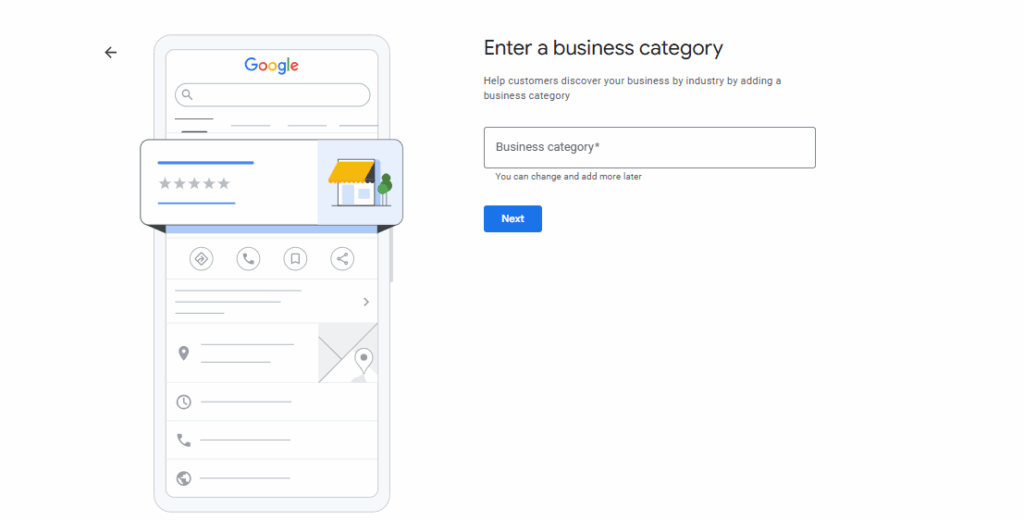
Image source: google.com/business
This choice affects how your business shows up in search results and acts as a key ranking factor. So, it needs to match your main service offering as closely as possible.
Step #5: Add Your Business Location or Service Area
If you have a storefront, enter your business address so customers can find your physical location. If you operate as a service-based business, you can define service areas instead.
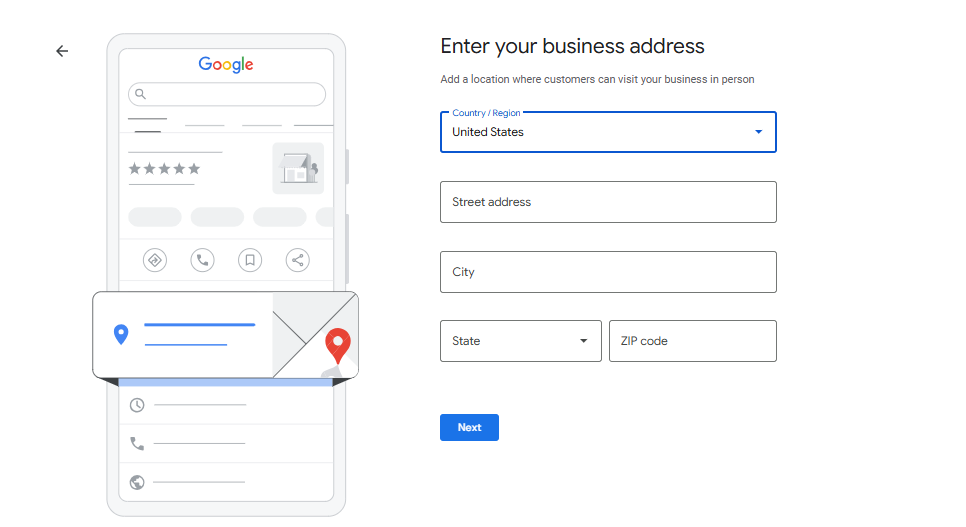
Image source: google.com/business
With this step, you’ll make sure your business appears in searches relevant to the areas you serve and helps customers find your services more easily.
Step #6: Add Contact Information
Enter your phone number and business website so more customers can contact you easily.
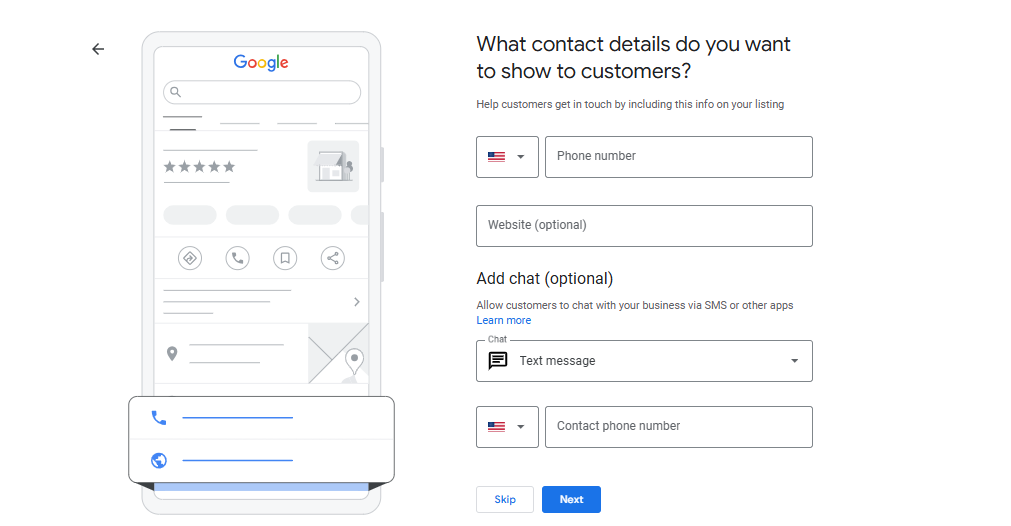
Image source: google.com/business
This is the main way potential customers reach out after finding your listing.
Step #7: Verify Your Business
Google requires verification before your listing becomes visible.
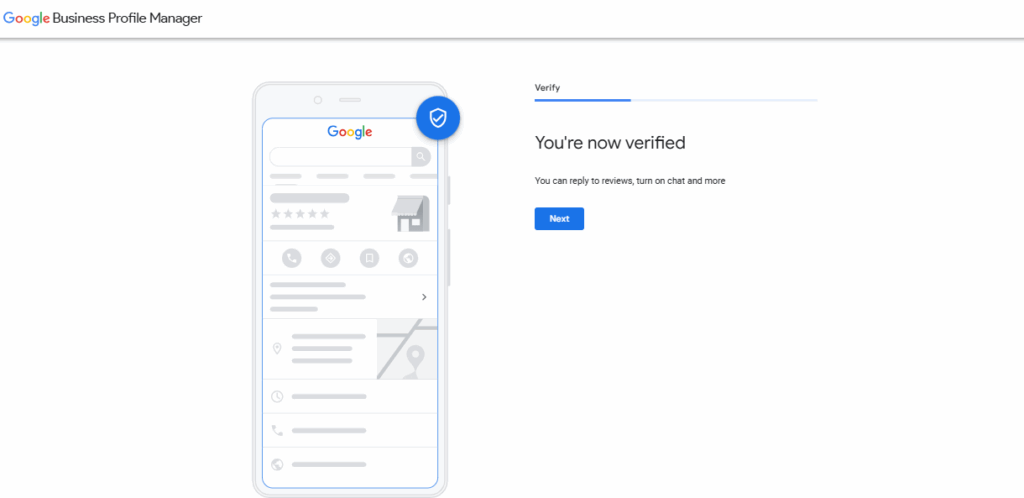
Image source: google.com/business
Google sends a code by mail, though other verification method options like phone or video may also be available. This step confirms that your business is legitimate and ready to appear in search.
Step #8: Complete Your Business Profile
Once verified, you should add all remaining details to strengthen your profile.
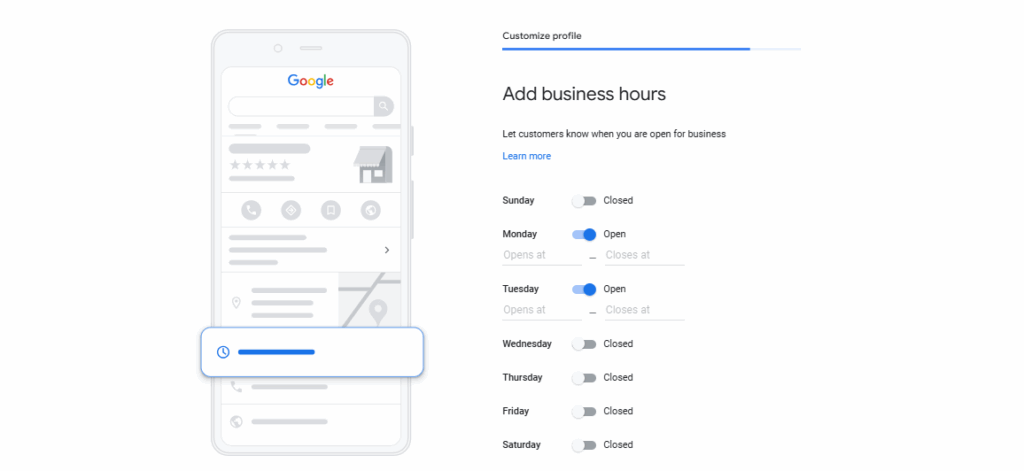
Image source: google.com/business
You may add business hours, description, services, and opening date. You should also add photos and upload high-quality photos to improve your first impression.
You can also add attributes such as outdoor seating if relevant, along with any other details that describe your services.
A complete profile improves visibility, increases profile strength, and supports better customer engagement.
Step #9: Ask for Customer Reviews
Testimonials show real experiences and strengthen confidence in your services. A consistent flow of satisfied customer reviews also supports stronger visibility in local search.
The timing of your request has a strong impact on results. Right after completing a job is the ideal moment, since the experience is still fresh in the customer’s mind.
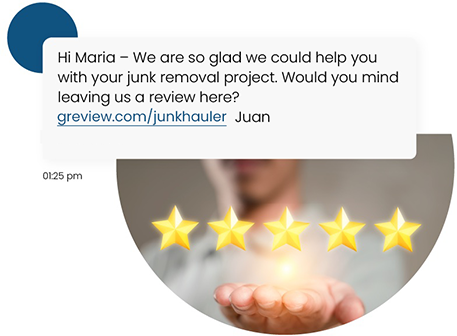
Textellent is a text marketing platform that supports this process. A thank-you message can be sent automatically with a direct link to your review page.
A subtle visual prompt that suggests a five-star experience can also guide stronger responses. A noticeable increase in review volume follows this approach, leading to better visibility and more inbound leads.
The Textellent mobile app also allows you to send SMS review requests on-site, which makes it easy to capture feedback immediately after the job is completed.
Step #10: Keep Your Profile Updated and Active
After setup, maintaining your profile is essential. Update your information when anything changes, respond to customer reviews, and create posts to stay active.
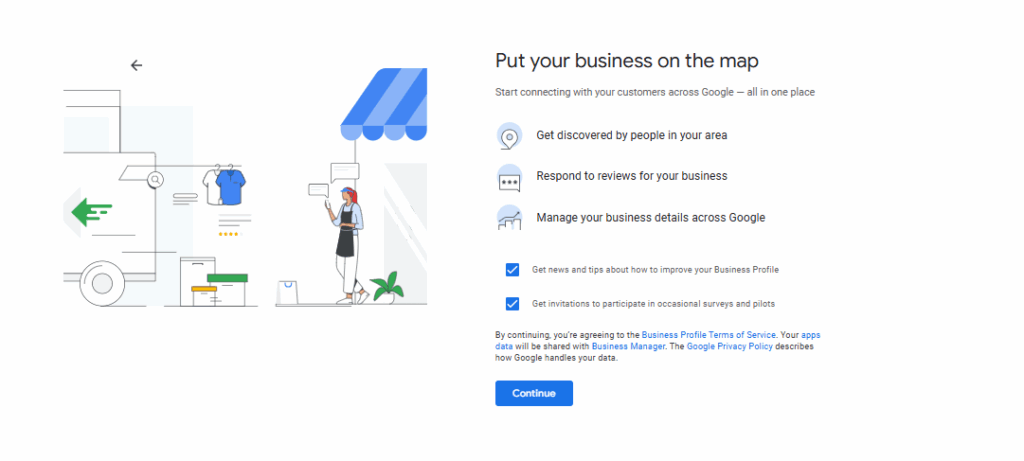
Image source: google.com/business
You can also promote special offers and highlight them to attract attention from your community.
An active profile signals to Google that your business is reliable and engaged. It also helps you track performance and understand how your listing performs over time.
How Texting Helps You Capture and Convert More Leads
A missed call or a late reply does not just delay the conversation. It usually ends it.
Customers move on quickly, especially in home services where urgency is high. This is where texting helps you stay competitive with every business listed in search.
A quick message allows you to respond even when you are busy, on-site, or unable to answer a call. It keeps the lead engaged and shows that your business is responsive.
Customers also prefer the option to text a business. When your phone number is enabled for texting, visitors can quickly send a message from your website and begin a conversation right away.
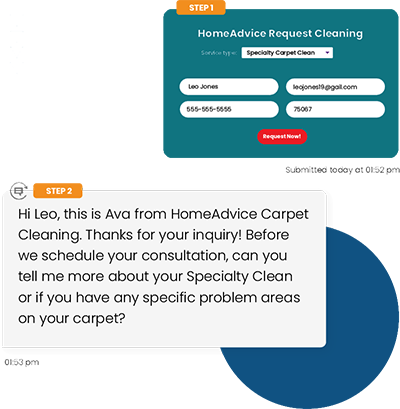
SMS business marketing also makes communication easier for the customer. Many people prefer sending a message instead of calling, especially if they are comparing multiple providers within the same business category.
A short reply can answer questions, confirm availability, or provide next steps. That speed helps customers make decisions faster and increases the chances that they choose your business.
Increase Your Booking Rate From Google Leads With Textellent
Proactive communication builds trust and creates a better overall experience. You can follow up, confirm appointments, and stay connected without adding pressure to your schedule.
Textellent brings these capabilities into a system designed for local businesses. You can respond quickly, automate follow-ups, and manage conversations without switching between tools.

If your Google Business page is already bringing in leads, it’s time to make sure none of them slip through. Sign up for a free trial or book a demo with Textellent today!
FAQs About How to Make a Google Business Page
Is Google Business Profile free to use?
There’s no cost to create or manage your business on Google, which makes it one of the most accessible tools for local businesses.
You can build your profile, manage your Google listing, respond to reviews, and update your business info without paying for the platform.
How long does it take to set up a Google Business Page?
The setup process itself can take as little as 10 to 20 minutes if you have all your details ready. Google sends a verification code by mail, which can take a few days to arrive.
Once verified, your profile can start appearing in Google Maps or Search, and see how many customers interact with your listing.
Do I need a website to create a Google Business Page?
A website is not required to create a Google Business page. You can still list your services, contact details, and location without a business website.
However, having a website can strengthen your presence and give customers more information before they reach out.
How do I edit my Google Business information?
You can update your profile at any time through your Google Business dashboard. Changes to your business info, such as hours, services, or contact details, can be made from your account.
Search your business name in Google, access your profile controls, and select the sections you want to update. Following simple tips like keeping your details accurate and up to date makes sure your listing stays relevant and competitive in search.

Get Started with Business Texting
Simple to launch, built to scale. Try Textellent FREE for 14 Days
Start Free Trial